
How to add a universal booking link
Last updated: November 17, 2026
Put a Book Now button on any page. Clicking it opens this service’s booking widget.
Each saved service has a universal booking link in Advanced settings. Paste that link on a button in your theme. Customers can click the button on the home page, or any other page, and the booking widget for that service opens.
Turn on the Booking widget app embed on your published theme first. Without it, the button link has nowhere to open the widget.
Copy the link
From the app sidebar, click "Services".
Open the service you want the button to book.
In the left menu, click "Advanced settings".
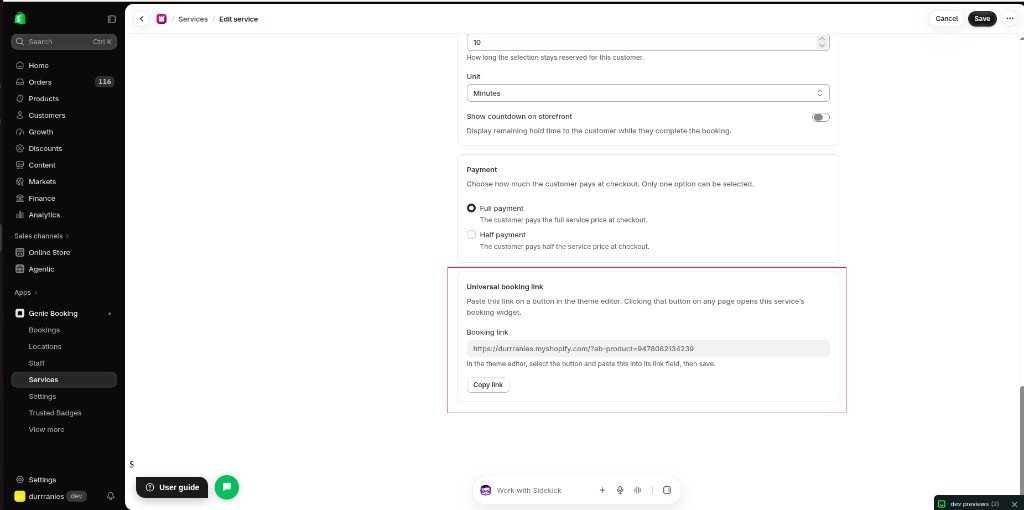
Scroll to "Universal booking link" at the bottom of the page.
If you see "Save this service first", click Save. The link appears after the Shopify product for this service is created.
Click "Copy link". The link looks like https://your-store.myshopify.com/?ab-product=123456789. The app shows "Booking link copied".
The service must be Active, with staff and a location assigned. A draft service stays hidden, so the widget will not open a bookable appointment.
Add the button in your theme
In Shopify admin, click "Online Store". On the theme customers see, click "Edit theme".
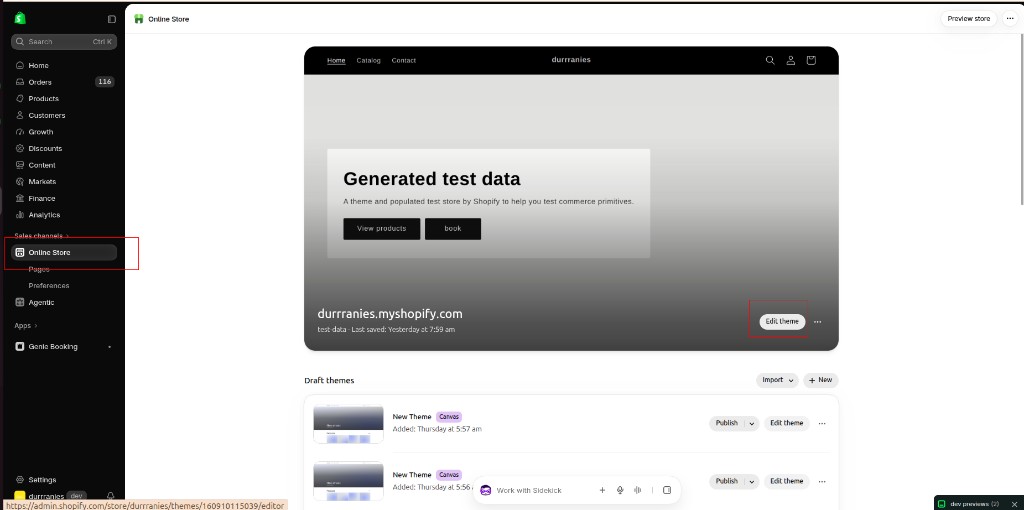
Open the page where the button should appear, such as the home page.
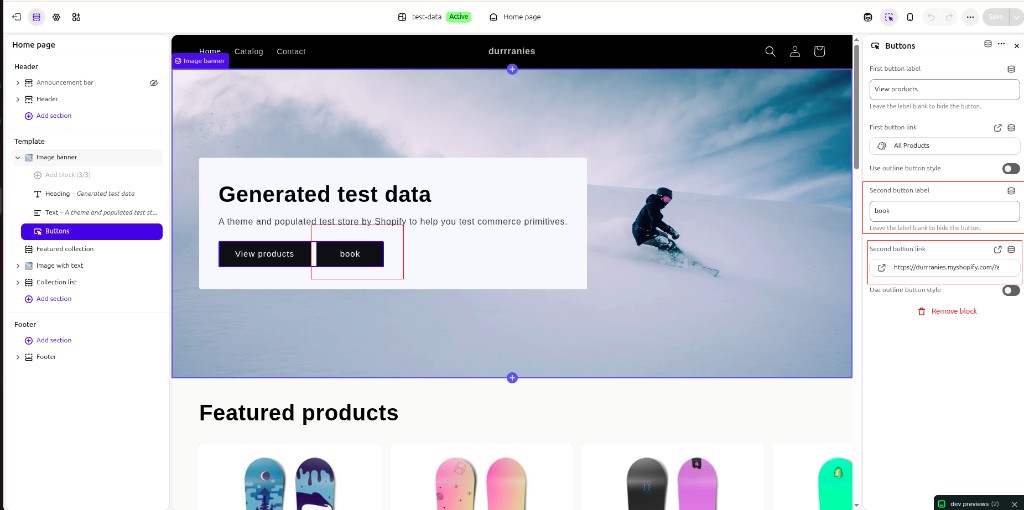
Select the Buttons block, then choose the button you want to use for booking.
Paste the copied link into that button’s link field. For the second button, use "Second button link". For the first button, use "First button link".
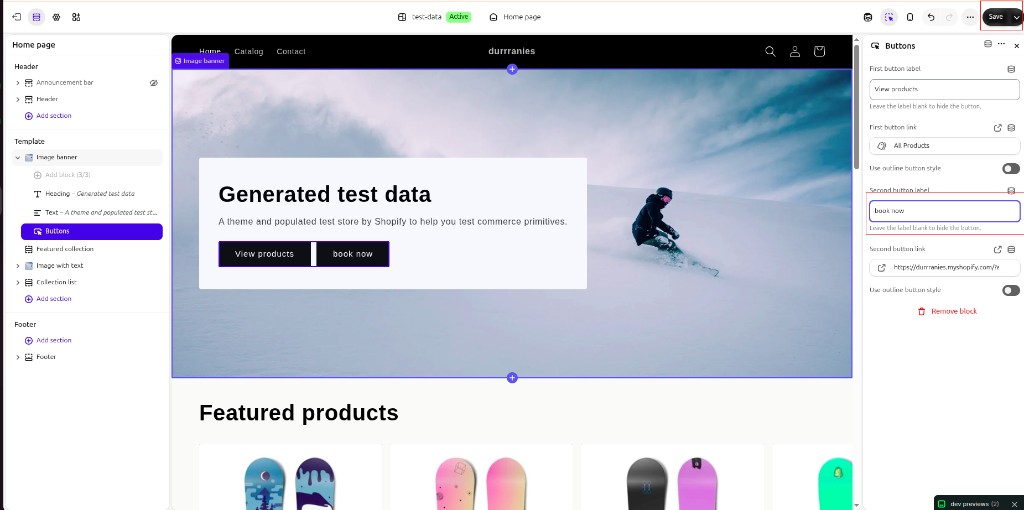
Set the button label, such as "book now", then click Save.
What the customer sees
Clicking the button opens that service’s booking widget. The customer chooses staff, location, date, and time, then checks out as a normal Shopify order. Use a separate link for each service if you want different buttons to book different services.
What's Next